Day 19 of 20 · Week 4: Governance
Audit and automate
A good RBAC design drifts unless you check it. Four built-in tools, Microsoft Graph, and a bonus PowerShell script tell you who has what, what changed, and which permissions nobody uses.
Everything we’ve built over 18 days starts drifting the moment you finish it. People change teams, groups pick up extra members, someone adds a permission “just for today.” Today is how you catch it.
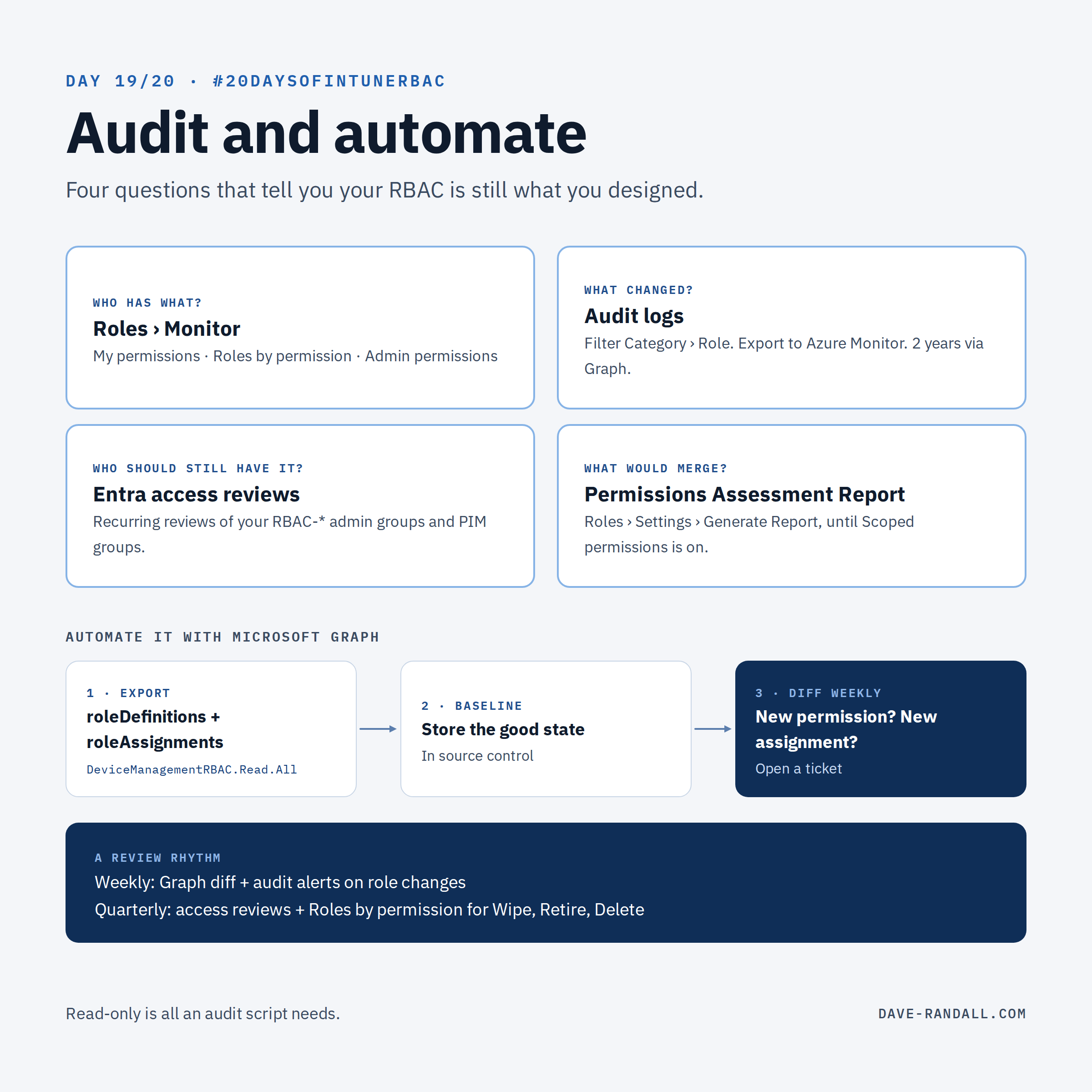
Four questions, four tools
| Question | Where to look |
|---|---|
| Who has what? | Tenant administration › Roles › Monitor |
| What changed? | Tenant administration › Audit logs |
| Who should still have it? | Microsoft Entra access reviews |
| What would merge? | The Permissions Assessment Report (Day 7, Day 14) |
Who has what: the Monitor views
Under Roles › Monitor, Intune has three views:
- My permissions: your own effective permissions, combined from all your assignments.
- Roles by permission: pick a permission and action, and see which role assignments grant it, and to which groups. “Who can wipe devices?” is one click.
- Admin permissions: pick a user and see every permission and action they have.
Roles by permission is the one to use in an access review. Start with Wipe, Retire, Delete, and Roles › Assign.
What changed: audit logs
Intune audits every change: “create, update (edit), delete, assign, and remote actions all create audit events.” It’s on for every tenant and can’t be turned off.
- Filter by Category › Role to see role and assignment changes.
- Viewing them requires Audit data › Read (or Intune Administrator).
- Export to Azure Monitor to keep them longer and alert on them, or pull two years of events with the Graph
auditEventsAPI. - Multi Admin Approval requests and approvals land here too (Day 17).
Who should still have it: access reviews
Your Intune roles are only as tight as the groups they’re assigned to (Day 4). Microsoft Entra access reviews let group owners or named reviewers confirm membership on a schedule, weekly to annually. Point them at your RBAC-* admin groups, and at your PIM eligible groups from Day 16. Access reviews require Microsoft Entra ID Governance or Microsoft Entra Suite (some capabilities work with Entra ID P2).
Automate it with Microsoft Graph
The admin center is great for a look. Graph is how you check every week without thinking about it.
- Read your RBAC as data.
GET /deviceManagement/roleDefinitionsand each definition’sroleAssignmentsreturn your roles and assignments. The least-privileged permission isDeviceManagementRBAC.Read.All. Read-only is all an audit script needs. - Keep a baseline. Export once when your design is right, and store it in source control.
- Diff on a schedule. Re-export weekly and compare. A new permission on a custom role, a new assignment, or a scope tag that disappeared is worth a ticket.
- Watch the audit stream for role changes made outside your change process.
If you followed my 19 Days of Intune Graph series, this is where it pays off: Day 5 covers assigning Graph permissions for Intune automation, and Day 14 covers RBAC for the automation itself.
Bonus: compare permissions to what admins actually do
The Monitor views tell you what admins can do. The audit log tells you what they did. Put the two together and you can find permissions nobody uses.
I wrote a PowerShell script that does exactly that:
Download Get-IntuneRbacExcessPermissions.ps1
It’s read-only: it makes no changes to your tenant. It:
- Pulls the last 90 days of Intune audit events (1–365 with
-DaysBack). - Works out which Intune permission each admin action needed (for example, Patch DeviceConfiguration → Device configurations › Update).
- Reads every role definition and assignment, and expands the admin groups to users.
- Credits each role’s permissions when one of its members used them.
- Reports, per role, which permissions were never used.
It also lists every user with Global Administrator or Intune Administrator in Entra ID, active or PIM-eligible, direct or through a group, since those roles bypass Intune RBAC entirely.
Running it
Install-Module Microsoft.Graph.Authentication -Scope CurrentUser
.\Get-IntuneRbacExcessPermissions.ps1 -DaysBack 90 -OutputPath C:\Temp\RbacReview
It signs in with delegated, read-only Graph scopes (DeviceManagementRBAC.Read.All, DeviceManagementApps.Read.All, GroupMember.Read.All, RoleManagement.Read.Directory, and a few other .Read.All scopes). It works in Windows PowerShell 5.1 and PowerShell 7. If you have the ImportExcel module, you also get a single Excel workbook.
What you get
| Report | What it tells you |
|---|---|
| RoleSummary | Per role: members, active members, permissions granted vs. used |
| ExcessivePermissionsByRole | Unused permissions, with a confidence level and a recommendation |
| RolePermissionUsage | Every permission in every role, used or not, and by whom |
| AdminActivity | Each admin’s actions and the permission each one needed |
| AdminsOutsideIntuneRBAC | Global and Intune Administrators, and activity no Intune role covers |
| UnmappedEvents | Audit activity the script couldn’t map to a permission |
| AppActors | Apps and service principals making changes |
Read the results with care
- Reads aren’t audited. Intune’s audit log records changes and remote actions, not views, so unused Read permissions are reported separately with low confidence.
- The mapping is a heuristic. Microsoft doesn’t publish an audit-to-permission mapping. Check UnmappedEvents and extend the mapping tables at the top of the script if needed.
- It leans toward not flagging. If several of an admin’s roles grant the permission they used, every one is credited.
- Scope isn’t evaluated. It looks at permissions, not scope groups or scope tags.
- Ninety days isn’t forever. Quarterly or annual tasks may not show up. Talk to the team before you remove anything.
For a built-in role, the fix is a custom copy without the unused permissions (Day 11).
A review rhythm that works
- Weekly (automated): Graph diff against your baseline; alert on role changes in the audit log.
- Quarterly: access reviews on admin groups; Roles by permission for your high-impact actions; a look for Default or tagless assignments (Day 10).
- Every release cycle: What’s new in Intune for RBAC changes (Day 18).
Try it
Open Roles by permission, choose Remote tasks › Wipe, and count the groups. Then count the people in them.
Tomorrow: the capstone, a reference architecture that puts all 20 days together.
Further reading
- Role-based access control with Microsoft Intune (see the monitoring views), Microsoft Learn
- Use audit logs to track and monitor events in Microsoft Intune, Microsoft Learn
- What are access reviews?, Microsoft Learn
- List roleAssignments (Microsoft Graph), Microsoft Learn