Day 11 of 20 · Week 3: Design patterns
Custom roles
Built-in roles are a starting point. Custom roles let you grant exactly what a job needs, as long as you know which permissions depend on each other.
Welcome to Week 3: Design patterns. Weeks 1 and 2 covered the building blocks. This week is about putting them together for real organizations, starting with the one I promised on Day 3: custom roles.
Why custom roles
Microsoft’s guidance is direct: “If a least privileged built-in role grants excessive privileges or permissions, consider using a custom role to limit the scope of administrative access.”
Built-in roles are designed for common jobs, and they’re the same in every tenant. Your jobs aren’t. I know the vast majority of customers are using built-in roles, so it’s likely your admins are over-permissioned for their job. For example, Help Desk Operator includes Wipe and Retire, and you can’t edit it. If your tier 1 team shouldn’t wipe devices, you need a custom role.
Two ways to build one
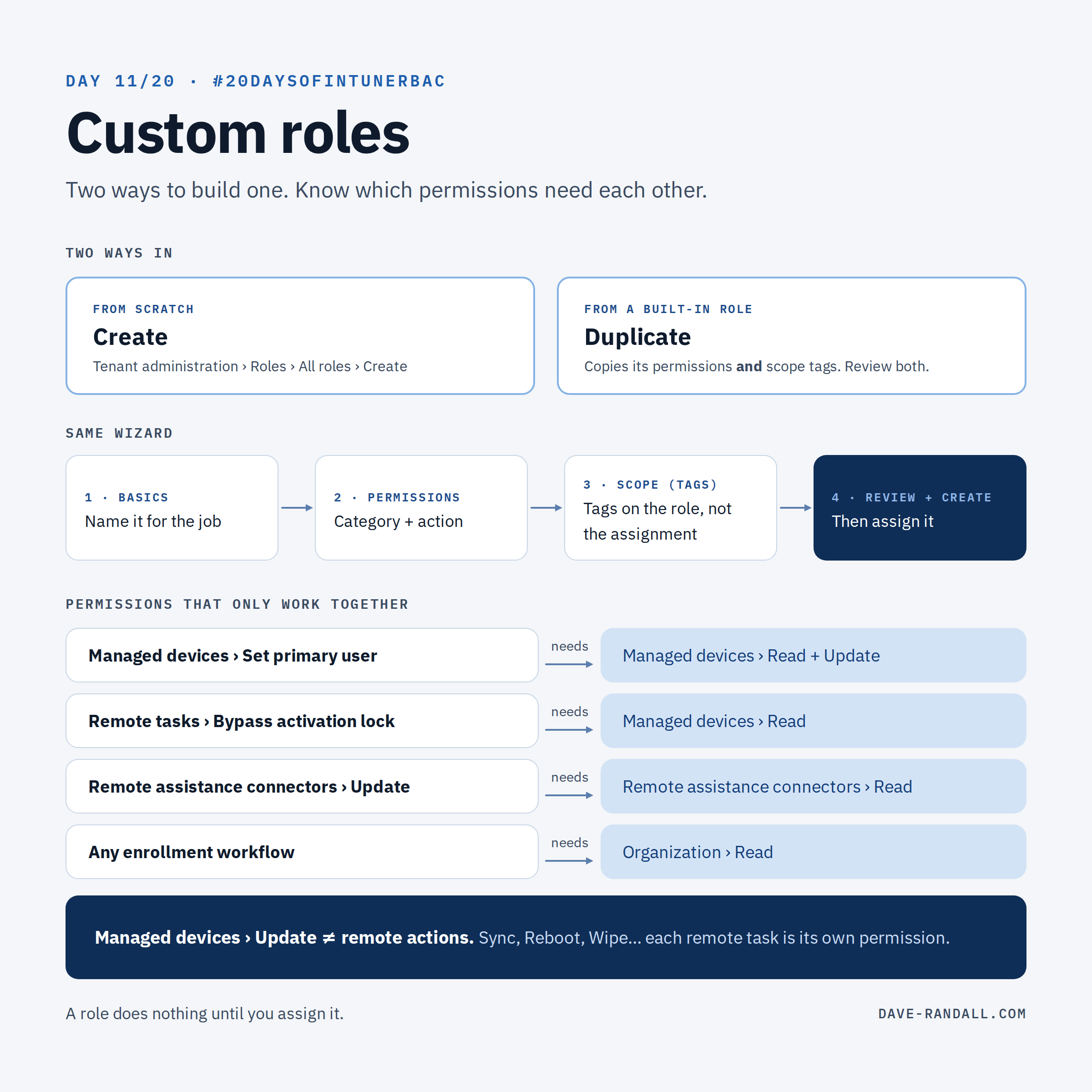
From scratch: Tenant administration › Roles › All roles › Create.
From a built-in role: select the role’s checkbox › Duplicate. All the permissions and scope tags from the original are copied, so review both before you save. This is the method I prefer: you start from a working role and remove what the job doesn’t need.
Either way, the wizard has the same pages:
- Basics: a clear name and description. Name it for the job, not the person, such as Help Desk – Tier 1 (no wipe).
- Permissions: choose the categories and actions (Day 5’s anatomy).
- Scope (Tags): tags on the role itself. Don’t confuse these with the scope tags on the role assignment, which you set later when you assign the role (Days 4 and 7).
- Review + create.
The role does nothing until you assign it.
Permissions that only work together
This is where most custom roles go wrong. Some permissions depend on others, and the console won’t always stop you from creating a role that can’t do its job. From Microsoft’s permission reference:
| If you grant… | …you also need |
|---|---|
| Managed devices › Set primary user | Managed devices › Read and Update |
| Remote tasks › Bypass activation lock | Managed devices › Read (to see the device at all) |
| Remote assistance connectors › Update | Remote assistance connectors › Read |
| Any enrollment workflow | Organization › Read (“required to activate all enrollment workflows”) |
| Mobile apps › Update | Sometimes Mobile apps › Create, for certain app update scenarios |
And one that surprises people the other way: Managed devices › Update doesn’t include remote actions. Each remote task (Sync, Reboot, Wipe…) is a separate permission.
Who can create them
Creating and editing custom roles takes the Roles permissions (Create, Update, Delete). The built-in Intune Role Administrator has them, as does the Entra Intune Administrator role. Keep that group small. Whoever can edit roles can grant themselves anything.
If you’ve turned on Multi Admin Approval for roles, changes to role permissions and assignments need a second admin’s approval before they take effect. More in Week 4.
Try it
Pick the built-in role your help desk uses. Duplicate it, remove one permission they never use (start with Wipe), and assign the copy to a pilot group. Watch the tickets for a week.
Tomorrow: persona-based design, a repeatable way to decide what goes into each custom role.
Further reading
- Create a custom role in Intune, Microsoft Learn
- Role-based access control with Microsoft Intune, Microsoft Learn
- Intune RBAC permission reference, dave-randall.com