Day 7 of 20 · Week 2: Scoping
Scope tags explained
Roles decide what admins can do. Scope tags decide which objects they can see. Same console, two admins, two very different views.
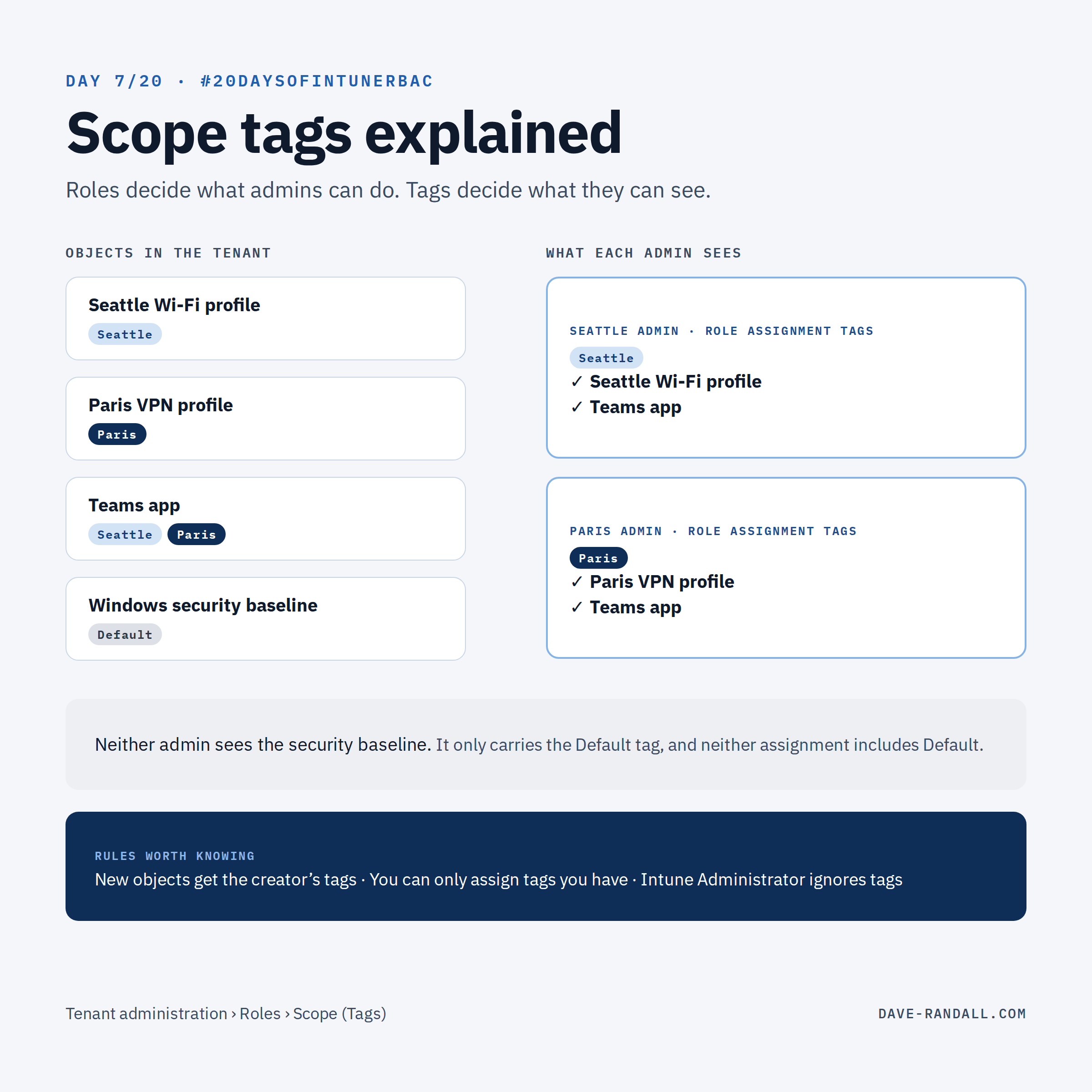
Microsoft sums it up in two sentences: roles determine what access admins have to which objects. Scope tags determine which objects admins can see.
How scope tags work
A scope tag is a label. You put it in two places:
- On a role assignment (the Scope (Tags) page of the assignment wizard). This sets the limit, or scope, of what the admin can see.
- On Intune objects: configuration profiles, compliance policies, apps, devices, role assignments, and more. These are the objects that tag limits. For most objects, you’ll find it under Properties › Scope (Tags).
An admin only sees an object that carries one of the tags from their role assignment(s). Two admins open the same console and see two very different views.
A worked example
Microsoft’s own example: a Seattle office admin with the Policy and Profile Manager role.
- Create a scope tag called Seattle (Tenant administration › Roles › Scope (Tags) › Create).
- Assign the role with members =
Seattle IT admins, scope groups =Seattle users, scope tags = Seattle. - Add the Seattle tag to the policies and profiles that admin should manage.
- Add the Seattle tag to the Seattle devices (more on that tomorrow).
Now the Seattle admin opens the same admin center as everyone else, but sees only Seattle’s objects. An object can carry several tags, so a shared app tagged Seattle and Paris shows up for both offices.
Rules worth knowing
- New objects inherit the creator’s tags. When an admin creates an object, all of the scope tags in their assignment are added to it automatically.
- You can only hand out tags you have. Admins can assign only scope tags that are in their own role assignments.
- At least one tag stays on. If you have a scope tag in your role, you can’t remove every tag from an object.
- Up to 100 tags per role and per object.
- Some objects don’t support tags: corporate device identifiers, Windows Autopilot device records, device compliance locations, and Jamf devices.
- VPP apps and ebooks inherit the tags of their VPP token.
- Entra roles ignore tags. Intune Administrator has full access no matter what. (Day 2’s two permission planes again.)
- Creating, renaming, or deleting tags requires the Entra Intune Administrator role. It’s a good candidate for just-in-time access (Week 4).
Scoped permissions
Scope tags are tied to role permissions in a way you might not realize, and it shows up when an admin has more than one role assignment with different tags. It’s one of the more complex parts of Intune RBAC.
By default, if those assignments share a permission category (for example, Mobile apps), Intune merges the permissions across them. Yes, merged. Microsoft’s example: an App Admins group has a Read-only role for Mobile apps scoped to Headquarters, and a full Create/Read/Update/Delete role for Mobile apps scoped to Regional Office. Because both share the Mobile apps category, the group ends up with full permissions in both places, not the read-only access you intended at Headquarters.
Scoped permissions (opt-in public preview since March 2026) fixes this. Each assignment’s permissions stay inside its own scope tags, so App Admins gets read-only at Headquarters and full control at Regional Office, exactly as designed. Microsoft says it will become the default for all tenants in a future release.
Check your tenant
- Go to Tenant administration › Roles › Settings.
- Select Generate Report to run the Permissions Assessment Report. It lists every admin group that would lose permissions when scoped permissions is turned on: the roles being merged, the scope tag, the resource, and the old vs. new permissions. You can run it as often as you like and export it to Excel.
- If the report returns no results, nobody in your tenant is getting extra access from merging, and turning on scoped permissions won’t take anything away. Turn on the Scoped permissions toggle on the same page, so future assignments behave the way you design them.
- If it does return rows, those are admins who currently have more access than their role assignments suggest. Review each one, adjust the assignments if needed, and tell the affected admins before you turn it on.
Two things to know before you flip the switch:
- It’s one-way. Enabling scoped permissions can’t be undone.
- It needs the right account. Microsoft recommends a custom Intune role with Organization › Update (no built-in Intune role includes it). The Entra Intune Administrator role also works, but it’s privileged.
We’ll come back to multiple role assignments in Week 3, when we get to design patterns.
Try it
Go to Tenant administration › Roles › Scope (Tags). If the only tag listed is Default, nobody in your tenant is scoped by visibility yet, and every admin with an Intune role can see every object their permissions cover.
While you’re there, open Settings and run the Permissions Assessment Report.
Tomorrow: getting tags onto devices, which works differently from policies.
Further reading
- Use RBAC and scope tags for distributed IT, Microsoft Learn
- Permission behavior across role assignments (scoped permissions and the Permissions Assessment Report), Microsoft Learn