Day 4 of 20 · Week 1: Foundations
Role vs. assignment
A role defines what someone can do. An assignment decides who gets it and where it applies. Getting this split right is the foundation of everything else.
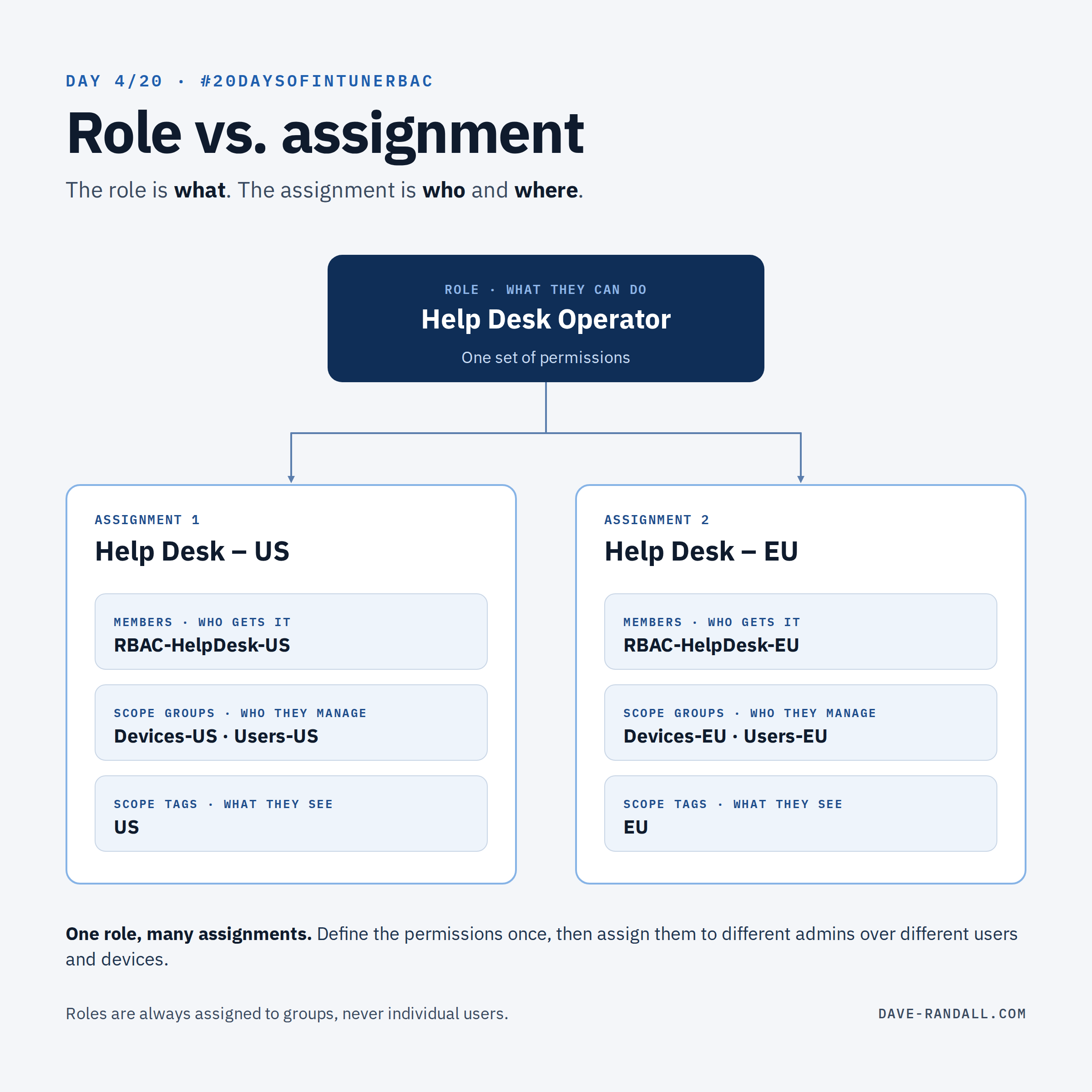
You can build a perfect custom role, and nobody gets any access until you assign it. That split is the most important mental model in Intune RBAC.
- The role is what: a set of permissions.
- The assignment is who and where: which admins get those permissions, over which users and devices, and which Intune objects they can see.
What’s in an assignment
Every role assignment has three parts:
| Part | Question it answers | Example |
|---|---|---|
| Members (admin groups) | Which admins receive the role? | RBAC-HelpDesk-US |
| Scope (Groups) | Which users and devices can they manage? | Devices-US, Users-US |
| Scope tags | Which Intune objects (policies, apps, devices) can they see? | US |
Scope groups and scope tags are the subject of Week 2. For now, the key point is that they belong to the assignment, not the role.
One role, many assignments
Because permissions and scope are separate, you can define a role once and assign it many times:
- Help Desk Operator → assignment Help Desk – US → US help desk manages US devices
- Help Desk Operator → assignment Help Desk – EU → EU help desk manages EU devices
Same permissions, different reach. When you change the role, every assignment picks up the change.
The reverse is also true: one admin can receive several assignments. How those combine is less obvious than you’d expect, and Day 14 is devoted to it.
Assign roles to groups, not people
Intune roles are always assigned to groups of users. That makes group membership your real access control, so:
- Use dedicated, role-specific security groups. Don’t reuse a distribution list or a team group.
- Only put people in a group if they’re authorized for everything that group’s assignment grants.
- Restrict who can change those groups’ membership.
The licensing gotcha
Admin accounts created after June 2021 can administer Intune without an Intune license. Accounts created before then still need one, and so do admins who receive a role through a nested security group. If an admin can’t see what you expect, check this before you debug the role.
Try it
In the Intune admin center, go to Tenant administration > Roles > All roles, pick a role you use, and open Assignments. For each assignment, note the admin groups, scope groups, and scope tags. You’ll use that inventory throughout Week 2.
Further reading
- Assign a role to a user in Intune, Microsoft Learn
- About Intune role assignments, Microsoft Learn