Day 5 of 20 · Week 1: Foundations
Anatomy of a permission
Every Intune permission is a category plus an action. A role is just a set of those pairs, and each category stands on its own. Plus the actions to watch closely.
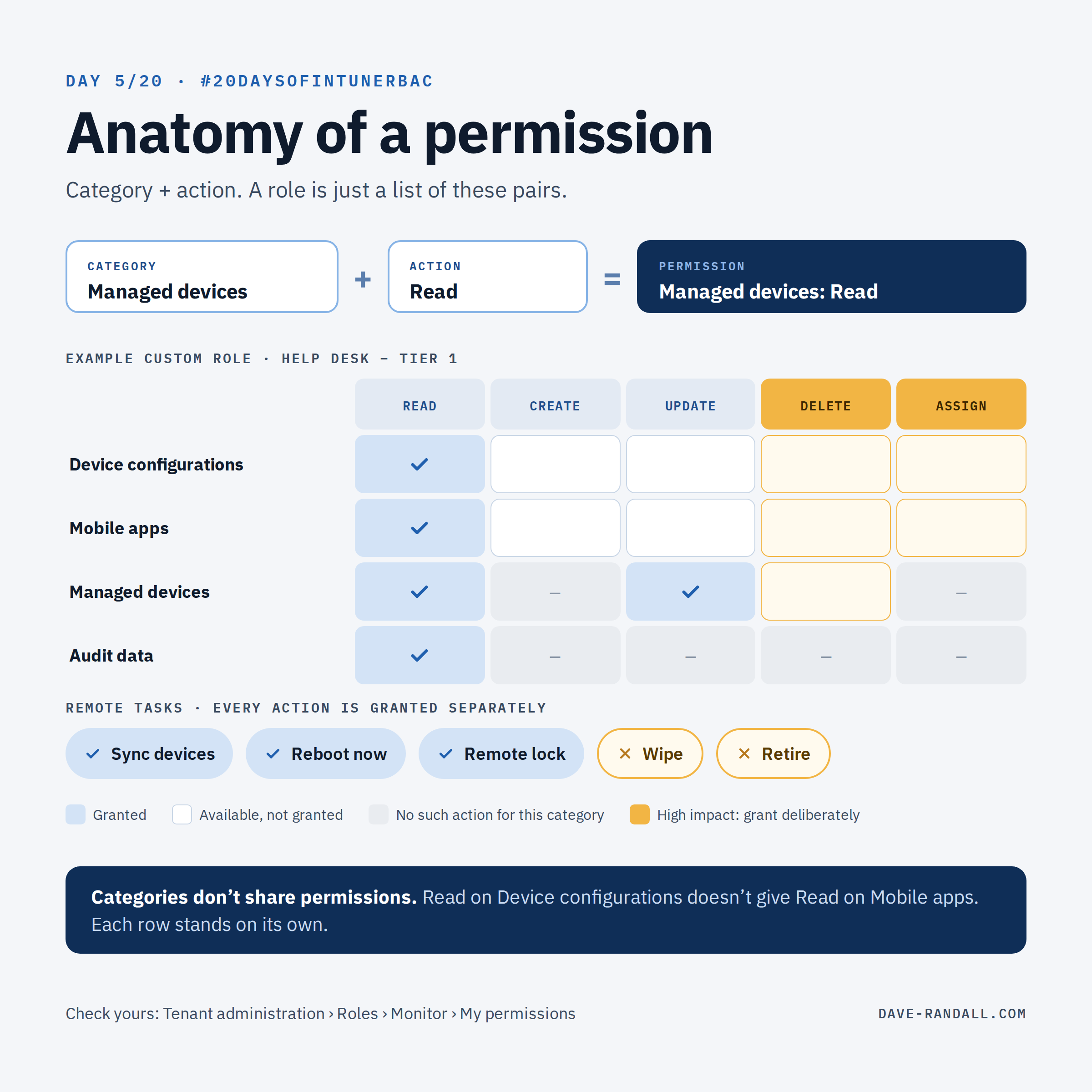
Every Intune permission has two parts:
- A category: the kind of object, such as Device configurations, Mobile apps, Managed devices, or Remote tasks.
- An action: what you can do to it, such as Read, Create, Update, Delete, Assign, or a specific remote task like Wipe.
A role, built-in or custom, is simply a list of category + action pairs. Once you see roles that way, a lot of RBAC behavior stops being surprising.
Categories don’t share permissions
Each category stands on its own. Read on Device configurations doesn’t give Read on Mobile apps. Update on Mobile apps doesn’t let you Assign them. If an admin “can see policies but not apps,” look for the missing category.
The categories you’ll use most
Intune has more than 50 permission categories. These are the ones most day-to-day roles are built from, with their actions as they appear in the admin center:
| Category | Actions |
|---|---|
| Device configurations | Assign, Create, Delete, Read, Update, Update Windows Backup and Restore, View Reports |
| Device compliance policies | Assign, Create, Delete, Read, Update, View reports |
| Security baselines | Assign, Create, Delete, Read, Update |
| Mobile apps | Assign, Create, Delete, Read, Relate, Update |
| Managed apps | Assign, Create, Delete, Read, Update, Wipe |
| Managed devices | Delete, Query, Read, Read Bios Password, Set primary user, Update, View reports |
| Policy Sets | Assign, Create, Delete, Read, Update |
| Filters | Create, Delete, Read, Update |
| Enrollment programs | Assign profile, Create/Delete/Read/Update for devices, profiles, and tokens, Sync device, Release Apple devices, and others |
| Audit data | Read |
| Organization | Create, Delete, Read, Update |
| Roles | Assign, Create, Delete, Read, Update |
| Multi Admin Approval | Approval for Multi Admin Approval, Create/Delete/Read/Update access policy |
| Remote Help app | Elevation, Take full control, View screen, Android unattended control, Windows unattended control remote sign-in |
| Remote tasks | 40+ individual device actions (below) |
📖 The full list is in my Intune RBAC permission reference: every category and action, what each one actually lets someone do, and the ones I’d never grant by default.
Actions that deserve extra care
Assign. Assign is what turns a policy or app into something that runs on devices. Treat it as seriously as Create. One useful detail: Assign permissions only apply to the users and devices in that role assignment’s scope groups, which is a big part of why scoping matters (Week 2).
Delete. For most Intune objects, there’s no recycle bin.
Remote tasks. This category contains more than 40 separate device actions, and they’re not equally risky. My rough grouping:
| Impact | Examples |
|---|---|
| Destroys data or removes management | Wipe, Retire, Clean PC, Delete (under Managed devices) |
| Exposes secrets or location | Get FileVault key, View macOS recovery lock password, Locate device |
| Disrupts the user | Remote lock, Reboot now, Shut down, Reset passcode, Enable lost mode |
| Low impact | Sync devices, Collect diagnostics, Windows Defender, Rotate Local Admin Password, Rotate BitLockerKeys |
Wipe and Retire act on real devices with real data. Grant remote tasks one at a time, never as a bundle. Copying a built-in role brings its whole set along: the built-in Help Desk Operator, for example, includes both Wipe and Retire.
Remote Help. The Remote Help app category now includes unattended control permissions, which let a helper connect to a device without the user present. Decide deliberately who gets those.
“Read only” isn’t always read only
Two examples worth knowing:
- The built-in Read Only Operator role includes the remote task Get FileVault key. That’s a retrieval of a recovery secret, not a passive view. If you rely on Read Only Operator for auditors or contractors, review it.
- Under Managed devices, Read Bios Password is its own action, separate from Read. Good: you can grant device visibility without it.
See what you actually have
Intune has three built-in views under Tenant administration > Roles > Monitor:
- My permissions: the combined list of permissions your own account has across all of its role assignments.
- Roles by permission: pick a permission and action, and see which roles, assignments, and groups grant it. This is the fastest way to answer “who can wipe devices?”
- Admin permissions: enter any user and see their complete permission list.
Try this today: open My permissions. Is anything there a surprise? Then try Roles by permission with Remote tasks > Wipe. The answer is often longer than people expect.
That’s a wrap on Week 1: Foundations
Next week: Scoping, and the difference between scope groups and scope tags that trips up almost everyone.
Further reading
-
Intune RBAC permission reference, dave-randall.com
-
Create a custom role in Intune, Microsoft Learn
-
Built-in role permissions for Microsoft Intune, Microsoft Learn
-
Monitor RBAC assignments, Microsoft Learn