Day 8 of 20 · Week 2: Scoping
Getting tags onto devices
Policies get tags from their properties. Devices get them from groups, and group-based tags win over anything you set by hand.
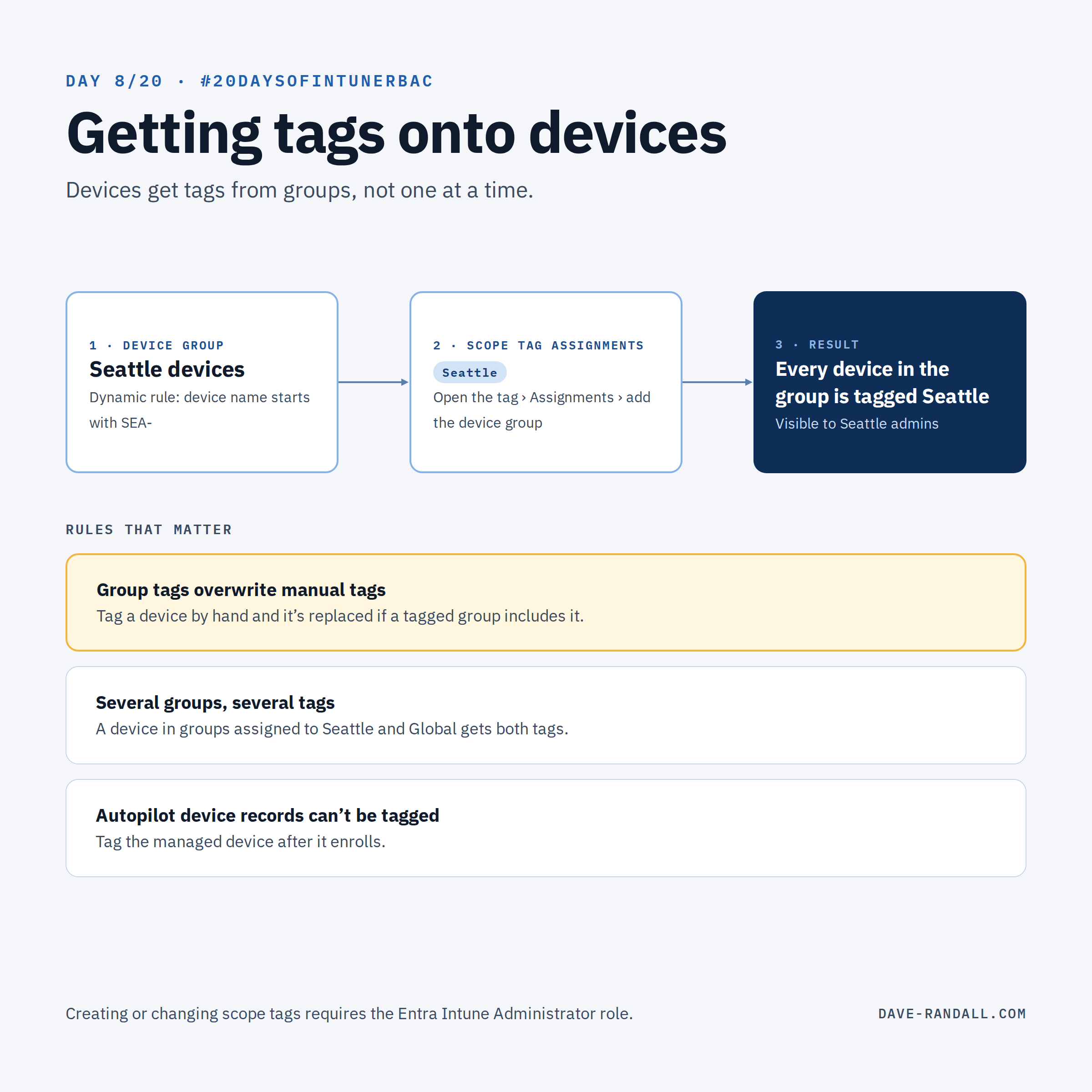
Yesterday we tagged policies and profiles through their Properties page. Devices are different: there are thousands of them, they come and go, and tagging them one by one doesn’t scale.
Tag devices through groups
The scope tag itself has an Assignments page. Any device in a group you add there gets the tag automatically.
- Go to Tenant administration › Roles › Scope (Tags).
- Create a tag, or open an existing one.
- On Assignments, add the groups containing the devices that should carry this tag.
From then on, devices that join those groups get the tag, and that’s what makes them visible to admins whose role assignments include it.
Rules that matter
- Group-based tags overwrite manual ones. Microsoft’s docs are explicit: “Auto scope tags assignments overwrite manually assigned scope tags.” If someone tags a device by hand and the device is also in a tagged group, the group wins.
- Multiple groups, multiple tags. If a device is in several groups assigned to different tags, all of those tags apply.
- Autopilot device records can’t be tagged. The Windows Autopilot device object doesn’t support scope tags, so plan for tagging the managed device once it enrolls.
Make the groups do the work
The quality of your device tags depends on the quality of your device groups. Dynamic device groups are the usual answer:
- By naming convention: for example, device names that start with
SEA-. - By enrollment path: for example, devices enrolled through a specific Autopilot group tag or enrollment profile.
- By ownership or platform, when those line up with how your teams are organized.
Whatever rule you choose, it has to be something you can trust. If a Paris device can end up named SEA-…, it’ll be visible to Seattle.
One permission note
Only an account with the Entra Intune Administrator role can create, update, or delete scope tags, including changing a tag’s assignments. Admins who have a scope tag in their role assignment can’t update or delete it from the master list.
Try it
Pick one scope tag and open its Assignments. Do those groups contain exactly the devices that should be visible to the matching admins, and nothing else?
Tomorrow: scope groups vs. scope tags, the difference that trips up almost everyone.
Further reading
- Use RBAC and scope tags for distributed IT, Microsoft Learn