Day 6 of 20 · Week 2: Scoping
Members vs. scope groups
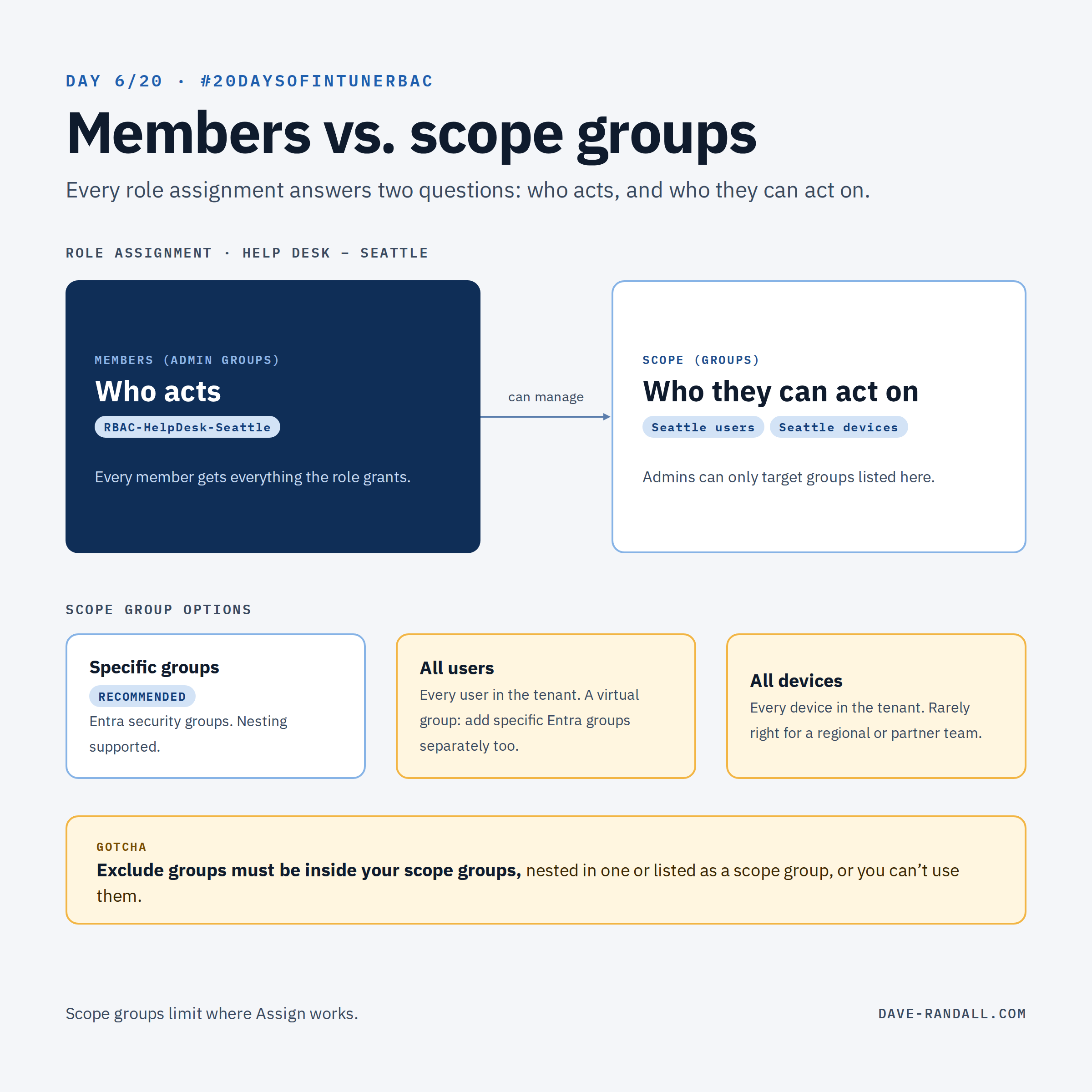
Every role assignment answers two "who" questions. Members are the admins who act. Scope groups are the users and devices they can act on.
Week 2 is about scoping. Now that we have the basics defined, it’s time to move deeper into role assignments.
Every role assignment answers two different “who” questions. If you get them confused (I know, it’s easy!), you can end up giving your help desk staff the ability to manage the whole tenant.
Two groups, two jobs
When you assign a role (Tenant administration › Roles › All roles › a role › Assignments › Assign), the wizard asks for two different kinds of groups:
| Page | Question it answers | Example |
|---|---|---|
| Admin Groups (members) | Who gets this role? | RBAC-HelpDesk-Seattle |
| Scope (Groups) | Whose users and devices can they manage? | Seattle users, Seattle devices |
Microsoft’s wording: members of the admin groups “have permissions to manage users/devices in the Scope (Groups).” Mix those two up and you either give the wrong people the role, or give the right people the whole tenant.
Scope groups limit where Assign works
Scope groups matter most for Assign. An admin can only target groups that are listed in the scope groups of their role assignment. Get this right, and Seattle admins scoped to Seattle users and Seattle devices can’t deploy to Paris devices, even with the Assign permission.
The three options, and their traps
On the Scope (Groups) page you can choose:
- Add groups: specific Entra security groups. This is the one to use. Nested groups are supported here.
- Add All users: admins can manage every user.
- Add All devices: admins can manage every device.
Two things trip people up:
- All users and All devices are Intune virtual groups, not Entra security groups. You can’t use them as parents for other groups. Microsoft notes that if you want admins to manage both everything and specific Entra groups, add those groups separately. Otherwise admins won’t have access to specific Entra user groups, even with All users in scope.
- Exclude groups must be in scope too. If an admin uses an exclude group on a policy or app assignment, that group must be nested in one of their scope groups or listed as a scope group itself.
Keep your admin groups tight
- Everyone in an admin group gets all the permissions the role grants. Keep those groups tight: only use groups whose membership you know and control.
- If your tenant allows unlicensed admins, role assignments only apply to direct members of the admin group. Members of nested groups don’t get the role unless they have an Intune license.
Try it
Open a role assignment and look at the Scope (Groups) page. If you see All users or All devices in your scope groups, ask yourself: does this team really manage everyone, everywhere?
Tomorrow: scope tags, which control what admins can see.
Further reading
- Assign a role to an Intune administrator, Microsoft Learn
- The Intune All users and All devices groups, Microsoft Learn