Day 14 of 20 · Week 3: Design patterns
Multiple assignments and the merge problem
When one admin has several role assignments, Intune combines them, and by default it merges permissions across scope tags. Here are the rules, and three ways to design around them.
Back on Day 4, I said that how multiple assignments combine “is less obvious than you’d expect.” On Day 7 you saw a preview. Today is the full story.
How assignments combine
Microsoft’s overview lists the rules for an admin with more than one role assignment:
- Permissions add up. “A user with Read permissions from one role and Read/write from another role… has an effective permission of Read/write,” assuming both assignments target the same scope tags.
- Assign stays put. Assign permissions and scope tags “only apply to the objects… in that role’s assignment Scope (Groups).” Being able to assign in Seattle doesn’t let you assign in Paris.
- Everything else spreads. Other permissions (Create, Read, Update, Delete) and scope tags “apply to all objects of the same type… in any of the user’s assignments.”
- Object types don’t mix. Read on policies doesn’t give you Read on apps.
Rule 3 is the surprise. It’s what produces the merge problem.
The merge problem
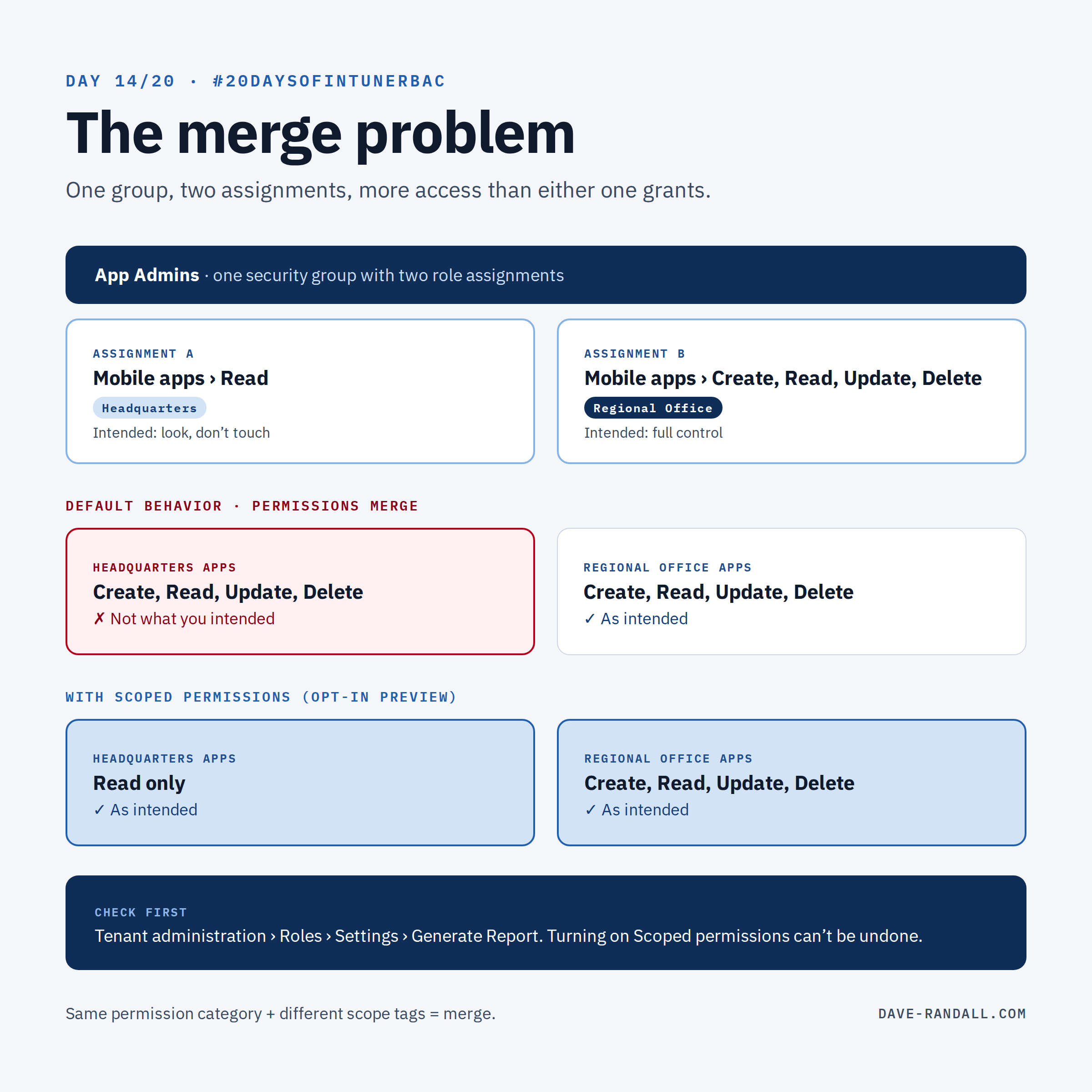
Microsoft’s example (from Day 7): the App Admins group has two assignments.
| Assignment | Permissions | Scope tag | Intended |
|---|---|---|---|
| A | Mobile apps › Read | Headquarters | Look, don’t touch |
| B | Mobile apps › Create, Read, Update, Delete | Regional Office | Full control |
Both share the Mobile apps category, so by default Intune merges them. App Admins end up with full permissions on Mobile apps at both Headquarters and Regional Office.
Nobody did anything wrong. Each assignment looks correct on its own. That’s why this is so easy to miss in a review.
Where it shows up
The patterns from the last three days make it more likely, not less:
- Regional admins with read-only access to shared content (Day 13): a Global read-only assignment plus a regional write assignment.
- Two hats (Day 12): an admin who’s Tier 1 help desk in one region and an app packager for another.
- Tiered teams: Tier 1 everywhere plus Tier 2 in one region.
Three ways to design around it
1. Turn on Scoped permissions. The opt-in setting (public preview since March 2026) keeps each assignment’s permissions inside its own scope tags. Run the Permissions Assessment Report first, since the change is one-way. Day 7 has the steps. Microsoft says this behavior will become the default for all tenants in a future release.
2. Keep categories apart. If an admin’s assignments never share a permission category with different tags, there’s nothing to merge. Personas with clean edges (Day 12) help here.
3. Separate admin groups. If someone truly has two jobs with different reach, consider whether they need two accounts or a just-in-time elevation (Week 4) instead of two standing assignments.
How to check today
- Run the Permissions Assessment Report (Tenant administration › Roles › Settings › Generate Report). Each row is a group, resource, and scope tag where merging currently grants more than the assignment intends.
- For any admin group in more than one assignment, list each assignment’s permission categories and tags side by side. Shared category + different tags = merge.
Try it
Run the report. If it’s empty, turn on Scoped permissions while it’s painless. If it isn’t, you’ve just found your highest-priority RBAC fix.
Tomorrow: partners and MSPs, and how delegated access works when the admin isn’t in your tenant at all.
Further reading
- Permission behavior across role assignments, Microsoft Learn
- Role-based access control with Microsoft Intune, Microsoft Learn