Day 16 of 20 · Week 4: Governance
Just-in-time access
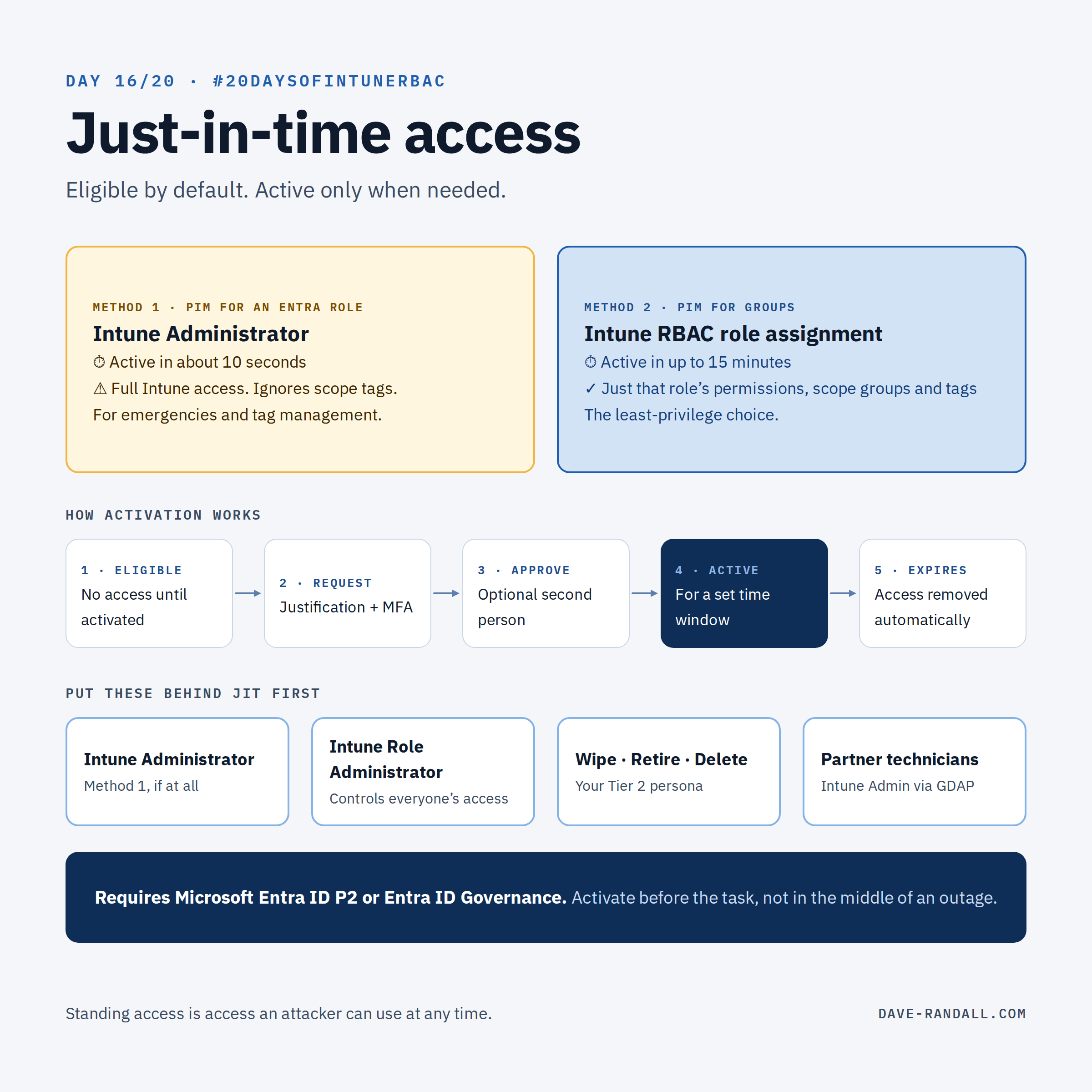
Standing admin access is access an attacker can use at any time. Privileged Identity Management turns it into access people request when they need it, and lose when they're done.
Welcome to Week 4: Governance. Weeks 1–3 were about giving each admin the right access. This week is about keeping it that way: when they have it, who approves the risky changes, and how you’d know if something drifted.
The problem with standing access
Every role assignment we’ve built so far is standing: it’s active 24/7, whether the admin is working or asleep. If that account is phished, the attacker gets everything the role grants, right away.
Most privileged work doesn’t need to be standing. Nobody wipes devices or rewrites roles all day. Just-in-time (JIT) access means an admin is eligible for a role and activates it only when they need it, for a limited time.
Two ways to do it in Intune
Microsoft Entra Privileged Identity Management (PIM) provides JIT access. Microsoft’s Intune RBAC overview describes two methods:
| Method 1: PIM for the Intune Administrator role | Method 2: PIM for Groups + an Intune role assignment | |
|---|---|---|
| What gets activated | The Entra Intune Administrator role | Membership in a group that’s an admin group on an Intune role assignment |
| What they get | Full Intune access (ignores scope tags) | Exactly that role’s permissions, scope groups, and scope tags |
| Time to take effect | “Typically… within 10 seconds” | “Typically take up to 15 minutes” |
| Least privilege | ❌ | ✅ |
Method 2 is the one that fits everything this series has built. Your custom roles and regional assignments stay exactly as designed; PIM just controls when someone is in the group. Plan for the delay: activate before you start the task, not in the middle of an outage.
Setting up Method 2
- Create a security group for the elevated role, for example
RBAC-HelpDesk-Tier2-SEA. Any Entra security group can be enabled in PIM for Groups, except dynamic groups and groups synced from on-premises. - Make it the admin group on the Intune role assignment (Day 4).
- Enable the group in PIM and make your admins eligible members, not active ones.
- Set the activation policy. PIM for Groups lets you require MFA, a justification, approval, and a maximum activation time.
What to put behind JIT first
- 🔴 Intune Administrator (Method 1, if you need it at all)
- 🧩 Intune Role Administrator, since whoever holds it controls everyone else’s access (Day 3)
- 🧹 Roles with Wipe, Retire, or Delete (the Tier 2 persona from Day 12)
- 🏷️ Scope tag management, which needs Intune Administrator (Day 7)
- 🤝 Partner technicians who need Intune Administrator through GDAP (Day 15)
Day-to-day roles like Tier 1 help desk and Read Only Operator can usually stay standing. JIT works best when it’s reserved for the things that would hurt.
Licensing
PIM requires Microsoft Entra ID P2 or Microsoft Entra ID Governance. Microsoft’s Intune RBAC overview calls it out for exactly this purpose: “time bound elevation.”
Try it
List every admin with standing Intune Administrator or Intune Role Administrator. For each one, ask: when did they last need it?
Tomorrow: Multi Admin Approval, a second pair of eyes on the changes that matter most.
Further reading
- Role-based access control with Microsoft Intune (see the Privileged Identity Management section), Microsoft Learn
- Privileged Identity Management (PIM) for Groups, Microsoft Learn
- Plan a Privileged Identity Management deployment, Microsoft Learn