Day 13 of 20 · Week 3: Design patterns
Delegating by region or business unit
Define each role once, then assign it once per region. A naming convention and a matched set of groups and tags make the pattern repeatable.
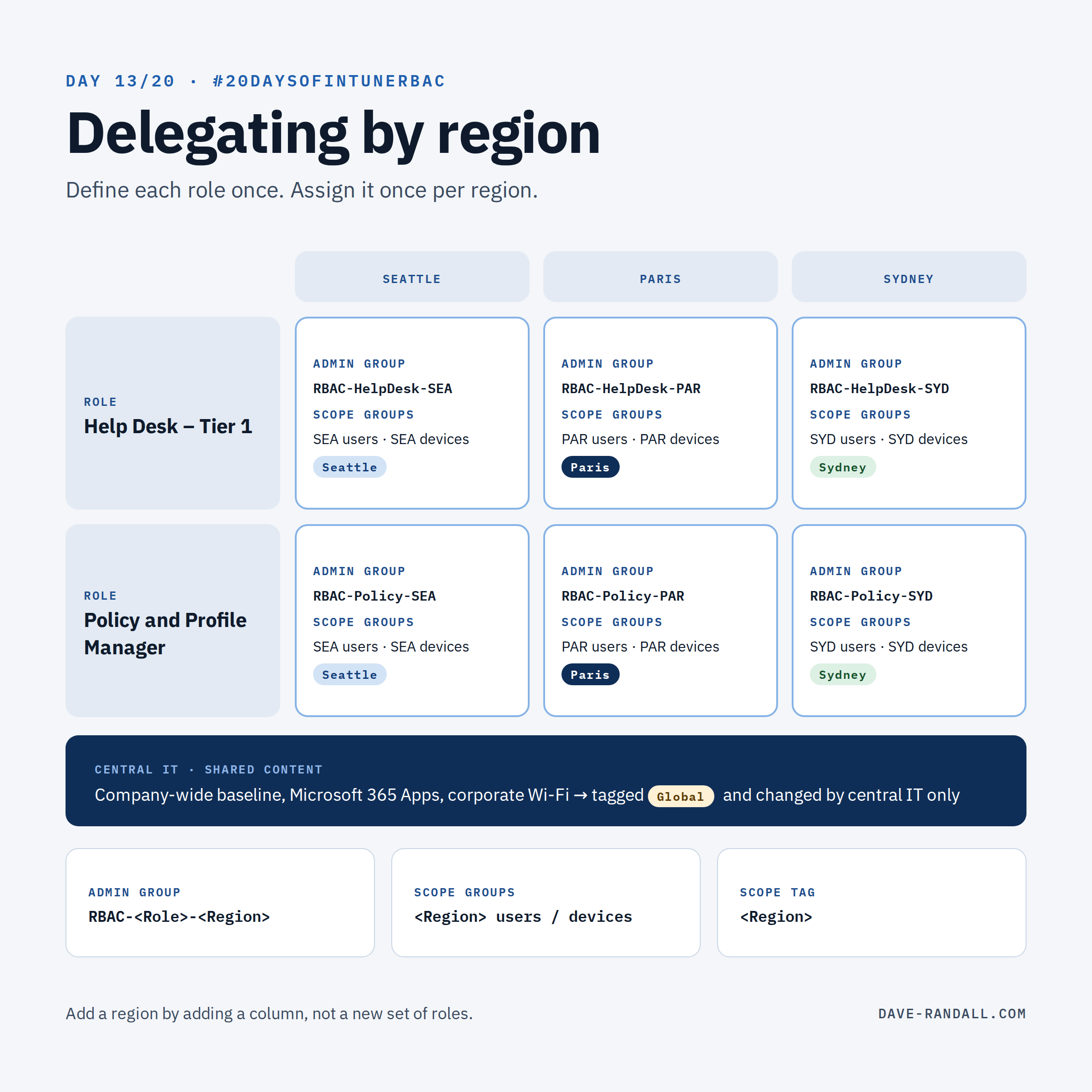
Days 11 and 12 gave you good roles. Today we give them boundaries: the Seattle help desk manages Seattle, Paris manages Paris, and central IT manages what everyone shares.
The pattern: one role, one assignment per region
Back on Day 4: a role is what, an assignment is who and where. Regional delegation is that idea at scale.
- Build each role once: Help Desk – Tier 1, Policy and Profile Manager.
- Create one assignment per role, per region.
- Each assignment gets that region’s admin group, scope groups, and scope tag, planned as a set (Day 9).
Role: Help Desk – Tier 1
- Help Desk – Seattle:
RBAC-HelpDesk-SEA→ scope groupsSEA users,SEA devices→ tag Seattle - Help Desk – Paris:
RBAC-HelpDesk-PAR→ scope groupsPAR users,PAR devices→ tag Paris - Help Desk – Sydney:
RBAC-HelpDesk-SYD→ scope groupsSYD users,SYD devices→ tag Sydney
Role: Policy and Profile Manager
- Policy – Seattle:
RBAC-Policy-SEA→ the same Seattle scope groups → tag Seattle - Policy – Paris and Policy – Sydney: the same pattern
When you change the role, every region picks up the change. When you add a region, you add a column, not a new set of roles.
Region or business unit?
The same pattern works for any boundary: a country, a subsidiary, a school, a brand. Choose the boundary that matches how your support is actually organized, not your org chart. If one team supports both Sales and Marketing devices, that’s one boundary, not two.
Don’t forget the shared layer
Every organization has content that all regions use: the company-wide security baseline, Microsoft 365 Apps, the corporate Wi-Fi. That’s where Day 10’s advice pays off:
- Tag shared content with an explicit tag like Global, not Default.
- Decide who can change shared content. Usually that’s central IT only, with its own assignment.
- If regions need to see shared content, be careful how you give it to them. Adding Global to a regional assignment gives them that role’s full permissions on shared content, not just visibility. A separate read-only assignment scoped to Global looks like the fix, but by default Intune merges permissions across assignments (Day 7). Thursday covers how to handle it.
Name things so the pattern is obvious
A convention makes the grid readable and makes mistakes easy to spot in an access review:
| Object | Convention | Example |
|---|---|---|
| Admin group | RBAC-<Role>-<Region> |
RBAC-HelpDesk-SEA |
| Scope groups | <Region> users, <Region> devices |
SEA devices |
| Scope tag | <Region> |
Seattle |
| Assignment | <Role> – <Region> |
Help Desk – Seattle |
Dynamic device groups based on a naming or enrollment rule (Day 8) keep the scope groups and tags accurate as devices come and go.
Try it
Draw your own grid: roles down the side, regions or business units across the top. Every empty cell is a team without delegated access. Every cell with Intune Administrator in it is a conversation to have.
Tomorrow: multiple assignments and the merge problem, the full story.
Further reading
- Use RBAC and scope tags for distributed IT, Microsoft Learn
- Assign a role to an Intune administrator, Microsoft Learn