Day 17 of 20 · Week 4: Governance
Multi Admin Approval
Multi Admin Approval makes a second admin approve your riskiest changes before Intune applies them, including changes to RBAC itself. Here's how it works, and the setup order that keeps you from locking yourself out.
Yesterday was about when admins have access. Today is about the changes so risky that one admin shouldn’t be able to make them alone.
What Multi Admin Approval does
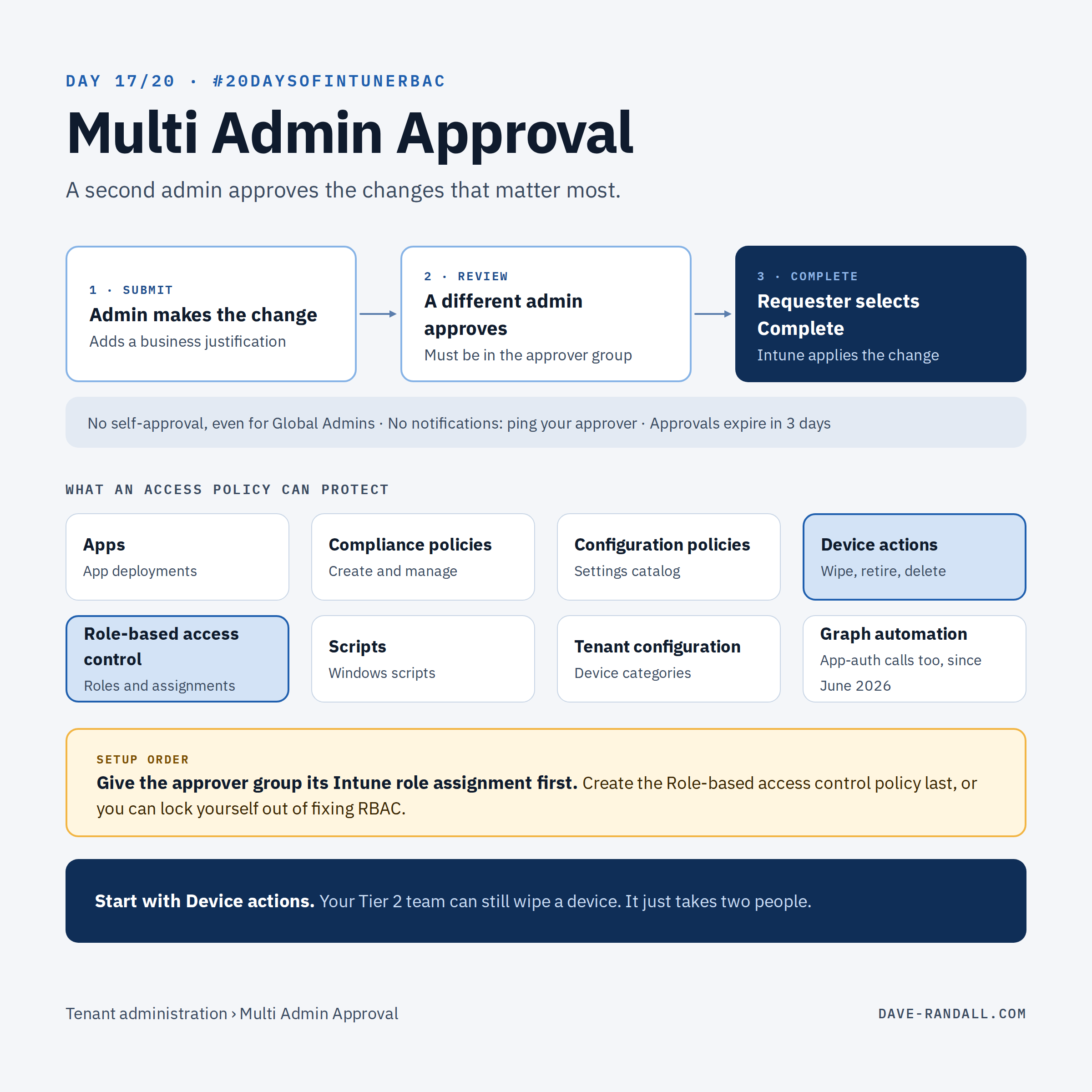
Microsoft: Multi Admin Approval (MAA) “protects your Intune tenant against compromised administrative accounts.” With an access policy in place, a change to a protected resource waits until a different admin approves it.
That includes the big accounts. Global Administrator and Intune Administrator need approval too, and nobody can approve their own request, even if they’re in the approver group. More importantly, Global Admins and Intune Admins can’t bypass MAA once policies are in place: their changes still need a second admin’s approval.
What you can protect
Each access policy protects one type of resource:
| Profile type | What it covers |
|---|---|
| Apps | App deployments (not app protection policies) |
| Compliance policies | Creating and managing compliance policies |
| Configuration policies | Creating and managing settings catalog policies |
| Device actions | Wipe, retire, and delete |
| Role-based access control | Roles, role permissions, admin groups, and member group assignments |
| Scripts | Deploying Windows scripts to devices |
| Tenant configuration | Device categories |
Changes to the access policies themselves always require a second admin’s approval.
Since June 2026, MAA also applies to automation: app-authenticated Microsoft Graph calls against protected resources are blocked with a 403 unless they carry the approval. You can exclude specific enterprise apps (up to 50 per policy), but every exclusion is a bypass, so keep the list short.
How a request flows
- Submit. The admin makes the change as usual and adds a business justification.
- Review. An approver finds it under Tenant administration › Multi Admin Approval › Received requests, adds notes, and approves or rejects it.
- Complete. The original admin selects Complete, and Intune applies the change.
Two things to tell your team: Intune doesn’t send notifications for new requests, so ping your approver for anything urgent. And an approved request that isn’t completed within 3 days expires.
Who’s involved
- Requester: needs the normal permission for the change (for example, Remote tasks › Wipe).
- Approver: must be a direct member of the policy’s approver group and have Read on that resource. The approver group must be a security group that’s directly assigned as an admin group on at least one Intune role assignment.
- Policy manager: a custom role with the Multi Admin Approval access policy permissions is Microsoft’s recommendation, or the built-in Multi Admin Approval Policy Manager role from Day 3.
- Policy approver: someone with the Multi Admin Approval › Approval for Multi Admin Approval permission.
The setup gotcha
Access policies protect themselves: creating or changing one also needs a second admin’s approval. So before you create your first policy, add the Approval for Multi Admin Approval permission (under the Multi Admin Approval category) to an Intune role and assign it. Admins with that role are the ones who can approve access policy changes. Without it, your first policy has nobody to approve it.
The setup order that matters
The Role-based access control policy protects all RBAC changes, including the role assignment your approver group depends on. Create it too early and you can lock yourself out of fixing RBAC.
- Create the approver groups and give each one its Intune role assignment.
- Create and test the other policies (start with Device actions).
- Confirm the approvers can see and approve requests.
- Then create the Role-based access control policy.
If you do get stuck, Microsoft’s recovery is to delete the Role access policy, wait 3–5 minutes, fix the approver group’s assignment, and recreate the policy.
Where it fits
MAA pairs naturally with the personas from Day 12. Your Tier 2 help desk can still wipe a device; it just takes a second person to agree. Every request, approval, and rejection lands in the Intune audit log, which we’ll put to work on Day 19.
Try it
Pick one protected resource with the highest blast radius in your tenant (for most, that’s Device actions). Name the approver group, then check that it has a direct Intune role assignment.
Would you like a deep dive on MAA? Let me know on LinkedIn.
Tomorrow: RBAC keeps expanding, and what that means for how you maintain your design.
Further reading
- Use Multi Admin Approval in Intune, Microsoft Learn
- Use Multi Admin Approval with the Microsoft Graph API, Microsoft Learn